
Kiwi Browser Download APK (Official) 2026
Download Kiwi Browser APK Latest Version for Android. Enjoy fast browsing, powerful customization, extension support, ad blocking, and smooth performance for a better web experience. Download now!
Category: Browser
Version
v124.0.
Size
120 MB
Android
5.0+
Update Date
18 – Aug – 26
Screenshots:
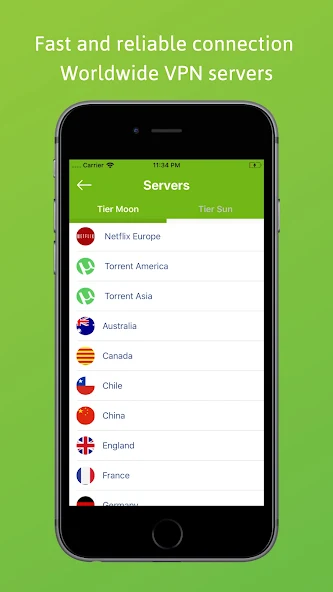
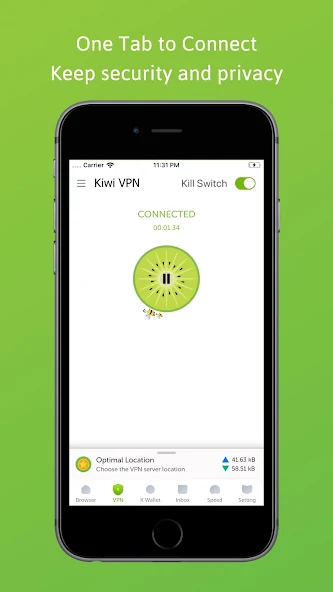
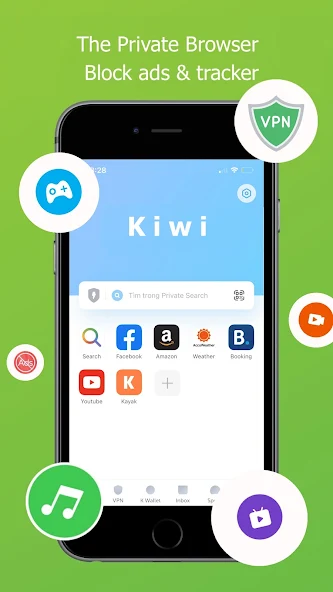

The Kiwi Browser latest version brings improvements aimed at better stability, website compatibility, privacy, and overall performance on Android devices. Each release can include changes to the browser engine, security components, extension support, and user interface. Before installing a Kiwi Browser APK, check the exact version details and Android requirements to make sure the release is compatible with your device.
Kiwi Browser APK Features for Android
Kiwi Browser APK offers several features that make it different from a basic Android browser. Its main focus is Chrome extension support, privacy, ad blocking, customization, and a simple browsing experience. These tools give users more control over how websites appear and how browser functions work on their phones.

Chrome Extension Support
One of the biggest reasons users choose Kiwi Browser is its support for compatible Chrome extensions on Android. Extensions can add extra functions such as productivity tools, password management, page customization, and other browser utilities. However, not every desktop Chrome extension is guaranteed to work correctly on a mobile device.
Built-In Ad Blocker
Kiwi Browser includes an ad blocker that can reduce unwanted advertisements across supported websites. It can also help limit intrusive pop-ups that make pages difficult to read. Blocking unnecessary page elements may provide a cleaner browsing experience and can sometimes reduce the amount of data a webpage needs to load.
Pop-Up Blocking
Pop-up windows can interrupt browsing and make some websites difficult to use. Kiwi Browser provides controls that can reduce unwanted pop-up behavior from websites. This feature is especially useful when visiting pages that contain aggressive advertisements or repeated pop-up requests.
Customizable Night Mode
The browser provides night mode and dark browsing options for users who prefer a darker interface. Depending on the settings and website, dark mode can change the appearance of browser elements and supported page content. It gives the interface a more comfortable look in low-light conditions.
Private Browsing
Kiwi Browser includes an incognito mode for sessions where you do not want normal browsing history saved in the usual way. This can be useful when using a shared device or when you want a separate browsing session. Private mode does not make you completely anonymous, so you should still avoid sharing sensitive information with untrusted websites.
Anti-Tracking Protection
Privacy controls can help reduce some common tracking methods used by websites and third-party services. These protections can limit the amount of information available to certain trackers during normal browsing. They work best when combined with careful website permissions and safe browsing habits.
Cryptojacking Protection
Some websites may attempt to use device resources for unwanted cryptocurrency mining. Kiwi Browser includes protection against cryptojacking, which can help prevent this type of harmful browser activity. This can also reduce unnecessary processor usage caused by malicious website scripts.
Custom Home Screen
The homepage can be adjusted to make frequently visited websites easier to access. Users can arrange useful shortcuts or tiles according to their browsing needs. A personalized home screen can make the browser feel more convenient for everyday use.
Flexible Address Bar
Kiwi Browser provides an option to change the position of the address bar. Users who prefer one-handed browsing may find a lower address bar easier to reach on larger Android phones. This small customization can make regular navigation more comfortable.
Download Manager
The browser supports file downloads directly to an Android device. Users can download supported documents, images, and other files and then access them through the device’s storage system. Available download behavior can depend on Android permissions and the type of file being saved.
Website Translation
Kiwi Browser can help users understand websites written in different languages through available translation functions. This is useful when a webpage does not provide content in your preferred language. Translation availability can depend on the website and the browser version.
Notification Controls
Websites can request permission to send notifications to your device. Kiwi Browser provides controls that help users manage these requests and reduce unwanted alerts. It is better to allow notifications only from websites that you trust and actually need.
Chrome Extensions Support in Kiwi Browser
Chrome extension support is one of the most important features associated with Kiwi Browser. It allows compatible browser extensions to add functions that are not normally available in a standard mobile browser. This makes Kiwi Browser particularly interesting for Android users who want a more flexible browsing setup.
How Chrome Extensions Work
A browser extension adds a specific function to the browser, such as blocking content, managing passwords, or changing webpage behavior. Kiwi Browser can run many compatible Chromium extensions directly on Android. The experience can differ from desktop Chrome because some extensions are designed specifically for larger screens or desktop environments.
Installing Chrome Extensions
Users can access a compatible extension source through the browser and search for the extension they need. After selecting an extension, the available installation option can add it to Kiwi Browser. Always review the extension’s permissions before installation.
Finding Compatible Extensions
Not every Chrome extension works perfectly on Android. Extensions that depend on desktop-only features, specific keyboard controls, or large-screen interfaces may have limitations. Choose extensions that have simple browser functions and avoid unknown tools that request excessive permissions.
Managing Installed Extensions
Installed extensions can normally be reviewed through the browser’s extension management area. Users can disable extensions that are not currently required or remove them completely. Keeping only useful extensions can help maintain better browser performance.
Extension Compatibility Issues
An extension may fail to work because it depends on a feature unavailable on Android. A website can also behave incorrectly when an extension changes its page content. If a problem appears after installation, temporarily disabling the extension can help identify the cause.
Kiwi Browser Ad Blocker and Privacy Protection
Privacy is another major part of the Kiwi Browser experience. The browser combines ad blocking, private browsing, tracker controls, and permission management to provide users with more control over website activity. These features can reduce unwanted content, but they cannot guarantee complete online anonymity.
Block Ads and Pop-Ups
The built-in ad blocking system can remove or reduce certain advertisements and pop-ups. This may make pages easier to read and can reduce distractions during normal browsing. Some websites may still display advertisements because no browser blocker can remove every type of online content.
Block Online Trackers
Trackers can collect information about browsing activity across websites. Kiwi Browser provides privacy controls that can restrict some tracking technologies. These controls can help reduce unwanted data collection during regular web use.
Protect Against Cryptojacking
Cryptojacking can secretly use a device’s processor for cryptocurrency mining. Kiwi Browser includes protection intended to reduce this type of unwanted activity. If your phone suddenly becomes hot or slow on a particular webpage, closing the page is also a sensible precaution.
Private and Incognito Browsing
Incognito mode can prevent certain browsing information from being stored in the normal browser history. It is useful for temporary sessions and shared devices. It does not hide your activity from your internet provider, website operators, or services you sign into.
Control Website Permissions
Websites may ask for access to notifications, location, camera, microphone, and other device features. Review these requests before selecting allow. Giving fewer permissions can reduce unnecessary access to your device.
Kiwi Browser Night Mode and Customization
Kiwi Browser APK provides several options for users who want more control over the appearance and layout of their browser. These options include dark mode, address bar placement, homepage settings, and shortcut management. Such controls make the browser more flexible than a fixed interface.
Custom Dark Mode
Dark mode changes supported browser elements from a bright appearance to a darker design. It can make the interface more comfortable in low-light environments. Website appearance can vary because individual websites may use their own color settings.
AMOLED Night Mode
A darker interface can be particularly useful on phones with OLED or AMOLED displays. Dark backgrounds can also make the browser look cleaner at night. Actual battery savings depend on the display technology, brightness, and amount of dark content.
Move the Address Bar
Users can change the address bar position to suit their preferred browsing style. Placing it closer to the bottom can make navigation easier on large-screen phones. This is especially helpful for people who use one hand while browsing.
Customize the Home Screen
The browser homepage can include shortcuts for frequently visited websites. Removing unnecessary shortcuts can keep the start page clean and easy to use. Users can organize the page around the sites they access most often.
Manage Homepage Tiles
Homepage tiles provide quick access to selected websites. They can reduce the time required to type a full web address every time you open the Kiwi Browser APK Removing unused tiles can make the interface less crowded.
Kiwi Browser Speed and Performance on Android
Kiwi Browser is designed for modern Android browsing with a Chromium-based foundation. Actual speed depends on your internet connection, processor, RAM, storage, Android version, and website complexity. A fast browser cannot overcome a weak network or a device with very limited resources.
Fast Page Loading
Kiwi Browser can load standard websites quickly when the internet connection is stable. Websites with large videos, advertisements, animations, and scripts naturally require more time. The built-in content controls can reduce some unnecessary page elements.
Lightweight Browser Design
The browser aims to provide useful features without making the interface overly complicated. A simple interface can make navigation easier on smaller screens. However, installed extensions and open tabs can increase resource usage.
Smooth Web Browsing
Smooth scrolling depends on both the browser and the Android device. Newer phones with stronger processors and sufficient RAM generally provide a better experience. Closing unnecessary tabs can help when the device begins to slow down.
RAM and Resource Usage
Kiwi Browser APK tabs and extensions can consume RAM, especially when several demanding websites are open at once. If Kiwi Browser becomes slow, close unused tabs and disable extensions that are not needed. Keeping enough free storage can also help maintain overall device performance.
Performance on Older Devices
Older Android phones may handle modern websites less efficiently than newer devices. Pages with heavy animations or video content can put additional pressure on limited hardware. Using fewer tabs and extensions can improve the experience on such phones.
Kiwi Browser Android Requirements and Compatibility
Before installing Kiwi Browser APK, check the Android version and hardware of your device. Requirements can differ between releases, so the exact version should always be checked before installation. This helps prevent compatibility problems and unnecessary installation errors.
| Requirement | Details |
|---|---|
| Platform | Android |
| Category | Web Browser |
| Developer | Geometry OU |
| Browser Engine | Chromium-based |
| File Type | APK |
| Minimum Android | Depends on version |
| Storage | Enough space for APK and browser data |
| Internet | Required for web browsing |
Android Version Requirements
The required Android version can change between Kiwi Browser releases. A newer version may stop supporting very old Android systems as browser technology advances. Always compare your device’s Android version with the requirements of the specific APK.
Processor Compatibility
Android devices use different processor architectures. Installing an Kiwi Browser APK that does not match your device can result in compatibility or installation problems. Use a package intended for your device architecture when multiple builds are available.
Storage Requirements
The browser needs free storage for the application, temporary files, downloads, and browser data. A phone with almost no free space may experience installation failures or performance issues. Keeping several hundred megabytes or more available is a sensible practice for a browser with regular downloads.
Smartphone Compatibility
Kiwi Browser can work on compatible Android smartphones across different manufacturers. Performance depends on the device’s processor, RAM, Android version, and storage. Newer hardware generally provides better results with demanding websites.
Tablet Compatibility
Compatible Android tablets can also provide a larger browsing workspace. The bigger display can be useful for websites, extension interfaces, and multiple tabs. Hardware and Android requirements still need to match the selected browser version.
Kiwi Browser APK Technical Details
Technical information helps users identify the correct application before installation. Version number, package name, file size, developer, and license can all help distinguish the intended application from unrelated APK files.
| App Information | Details |
|---|---|
| App Name | Kiwi Browser |
| Developer | Geometry OU |
| Category | Web Browser |
| Package Name | com.kiwibrowser.browser |
| File Type | APK |
| Browser Base | Chromium |
| Platform | Android |
| License | BSD 3-Clause |
Kiwi Browser Version
The version number identifies a particular release of the browser. Always compare the version number before installing or updating an APK.
APK File Size
The APK size can change between releases because browser components and included resources can change. Make sure your phone has sufficient free storage before installation.
Package Name
The package name helps identify the Android application internally. The commonly listed Kiwi Browser package is com.kiwibrowser.browser.
Developer Details
Kiwi Browser is associated with Geometry OU. Checking the developer information is useful when verifying application details before installation.
License Information
Kiwi Browser uses open-source components and is associated with the BSD 3-Clause license. Open-source software allows its source code and development components to receive wider review and contribution.
How to Download and Install Kiwi Browser APK on Android
Kiwi Browser APKmanually requires a few extra steps compared with installing an application through an official app store. Before installation, check the Android version, file source, package details, and available storage. Use only a trusted APK source and avoid modified files that request unnecessary permissions.
Check Your Android Version
Open Android Settings and check the software version installed on your phone. Compare it with the minimum requirement of the Kiwi Browser release you want to install.
Download the Correct APK
Choose the APK that matches your Android device and desired version. Check the file name, version, size, and source before opening the package.
Allow APK Installation
Android may require permission for installation from a source outside the standard app store. Only enable this permission for a source you trust, and turn it off again when it is no longer required.
Install Kiwi Browser
Open the downloaded APK and follow the Android installation prompts. If Android reports a compatibility problem, check the APK architecture, Android version, storage, and file integrity.
Open and Set Up the Browser
After installation, open Kiwi Browser from your application list. Set your preferred homepage, privacy controls, search settings, and other options before regular use.
How to Install Chrome Extensions on Kiwi Browser
Chrome extensions can add useful functions to Kiwi Browser. The installation process is generally simple, but users should remember that mobile compatibility is not guaranteed for every extension.
Open the Extension Store
Open Kiwi Browser and visit the supported extension source. Search for the extension you want to use.
Search for an Extension
Enter the extension name in the search field and check its description. Pay attention to permissions, developer information, and user feedback before installation.
Install the Extension
Select the available installation option for the chosen extension. After installation, check the Kiwi Browser APK extension section to confirm that it is active.
Manage Extension Settings
Open the extension management area to review installed tools. Disable an extension if it causes website problems or unnecessary resource usage.
Remove an Extension
Remove extensions that you no longer need. Fewer extensions can make the browser easier to manage and may reduce compatibility problems.
How to Customize Kiwi Browser Settings
Kiwi Browser gives users several options to adjust the browser according to their preferences. These controls can change the interface, homepage, address bar, and browsing appearance.
Change the Night Mode
Open the browser settings and locate the appearance or night mode option. Select the mode that provides the most comfortable display for your environment.
Move the Address Bar
The address bar can be placed in a preferred position when the available version supports this option. A lower position can be easier to reach on large Android phones.
Customize the Homepage
Choose the websites and shortcuts you use most often. Removing unnecessary items keeps the homepage clean and easier to navigate.
Manage Homepage Tiles
Tiles can provide quick access to frequently visited pages. Add useful websites and remove shortcuts that you no longer need.
Adjust Browser Settings
Review privacy, notification, download, search, and website permission settings. Changing only the options you understand can prevent unexpected browser behavior.
How to Use Kiwi Browser for Private Browsing
Kiwi Browser APKincludes privacy controls that can reduce unwanted tracking and local browsing traces. These tools are useful, but users should understand that private browsing does not provide complete anonymity.
Open Incognito Mode
Open a new incognito tab when you want a separate browsing session. Information from this session is handled differently from normal browser history.
Block Website Trackers
Use available privacy controls to reduce tracking technologies. This can limit some third-party tracking but cannot prevent every possible tracking method.
Manage Site Permissions
Review permissions for camera, microphone, location, notifications, and other features. Allow access only when the website genuinely needs it.
Control Notifications
Block notifications from websites that send unwanted alerts. Keep notifications enabled only for services you trust and use regularly.
Clear Browsing Data
Browser settings can provide options to clear selected browsing information. Regular cleanup can be useful on shared devices or when you want to remove unnecessary stored data.
Kiwi Browser Download Manager and File Support
Kiwi Browser can download different types of supported files directly to an Android device. The downloaded files are normally accessible through Android’s file management system.
Download Files on Android
Open the required webpage and select the download option provided by the site. Confirm the download when Android or the browser asks for permission.
Manage Downloaded Files
Use the Kiwi Browser APK download section or Android file manager to locate saved files. Organize important files into suitable folders to keep storage manageable.
Choose Download Location
Some Android versions and browser releases provide controls for download locations. Choose a location with enough free storage for large files.
Find Saved Downloads
Downloaded files can normally be found through the device’s Downloads folder or the browser’s download manager. If a file is missing, check both locations and confirm that the download completed successfully.
Kiwi Browser Translation and Language Support
Kiwi Browser can help users understand webpages that use different languages. Translation functions can be useful when reading international websites, articles, documentation, or online services.
Translate Web Pages
When a supported webpage uses another language, use the available translation option. The result can help you understand the main content without manually copying the entire page into another translation tool.
Change Browser Language
Language preferences can be adjusted through the browser or Android settings depending on the available version. Changing the interface language can make menus and browser controls easier to understand.
Supported Languages
Language availability can vary by browser version and translation service. If a particular language is unavailable, another translation method may be required. Pros and Cons
Kiwi Browser offers several useful features, especially for Android users who want extension support and interface customization. At the same time, it has limitations that should be considered before making it your primary browser.

Pros
Cons
Main Advantages
Main Disadvantages
Is Kiwi Browser Safe to Use on Android?
Kiwi Browser APKprovides privacy and security features, but safe use also depends on where the APK comes from and how the browser is configured. Users should always verify application details before installation and avoid unknown modified packages.
Open-Source Components
Kiwi Browser uses open-source software components as part of its browser technology. Open-source development provides opportunities for code review and community contribution.
Privacy and Security Features
The Kiwi Browser APKincludes ad blocking, tracker controls, private browsing, and cryptojacking protection. These tools can reduce several common online risks during normal browsing.
APK File Safety
An APK should come from a reliable and trustworthy source. Avoid packages that have been modified to add unknown functions, advertisements, tracking systems, or unnecessary permissions.
Chrome Extension Security
Extensions can access webpage content and sometimes request powerful permissions. Install only extensions that you understand and trust, and remove any extension that behaves unexpectedly.
Keeping Kiwi Browser Updated
Use a supported and compatible version whenever possible. Updates can provide important fixes and better compatibility with modern Android systems and websites.
Kiwi Browser vs Other Android Browsers
Kiwi Browser APK stands out mainly because of its extension support and customization options. Other Android browsers may focus more heavily on synchronization, ecosystem integration, speed, or privacy depending on their design.
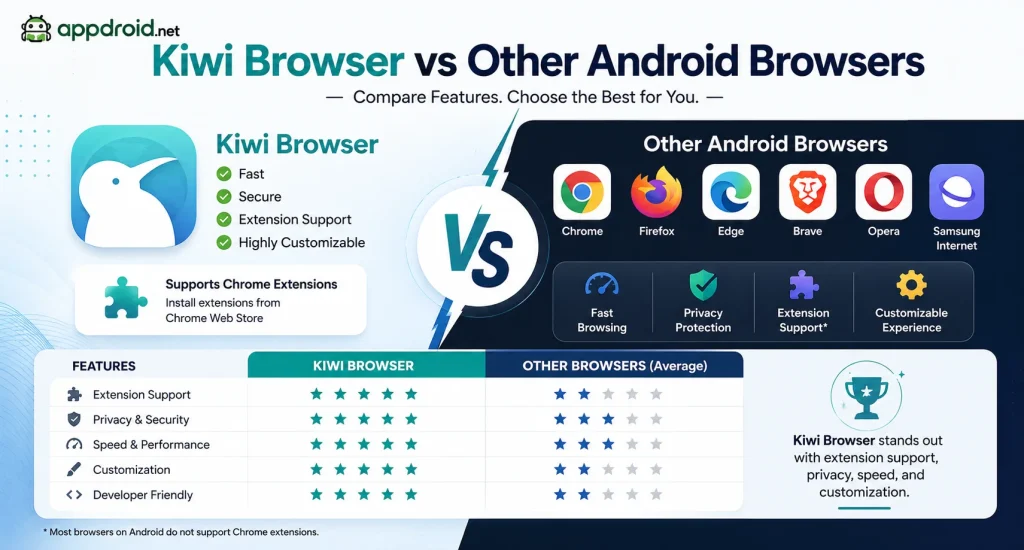
| Feature | Kiwi Browser | Regular Android Browser |
|---|---|---|
| Chrome Extensions | Supported | Varies |
| Built-In Ad Blocker | Yes | Varies |
| Night Mode | Yes | Usually |
| Chromium-Based | Yes | Depends |
| Privacy Controls | Yes | Varies |
| Homepage Customization | Yes | Varies |
| Address Bar Position | Customizable | Usually Limited |
Kiwi Browser for Chrome Extensions
Users who want desktop-style browser extensions on Android may find Kiwi Browser particularly useful. Extension compatibility still depends on the individual extension.
Kiwi Browser for Ad Blocking
The built-in ad blocker can provide a cleaner browsing experience without requiring a separate blocking application. Some advertisements may still appear because websites use different methods to deliver content.
Kiwi Browser for Privacy
Privacy controls can reduce trackers, unwanted notifications, and certain browser-based threats. Users should still avoid sharing personal information with suspicious websites.
Kiwi Browser for Customization
Kiwi Browser APK provides more interface control than many basic mobile browsers. Options such as the address bar position, homepage layout, and dark mode can make the browser easier to personalize.
Common Kiwi Browser Problems and Solutions
Kiwi Browser APK Not Installing
Check the Android version, processor architecture, available storage, and APK integrity. If the package is incompatible, choose a release designed for your device.
Chrome Extension Not Working
The extension may depend on desktop-only functions or browser features unavailable on Android. Disable the extension and check whether the browser returns to normal.
Kiwi Browser Running Slowly
Close unnecessary tabs and disable extensions that you do not use. Also check available RAM and storage because low device resources can affect browser performance.
Website Not Opening
Some websites may not work correctly because of browser compatibility, security settings, or website restrictions. Try adjusting the relevant browser setting only when you trust the website.
Kiwi Browser Keeps Crashing
Restart the browser and your Android phone. If the problem continues, clear unnecessary browser data and check whether a newer compatible release is available.
Download Not Working
Check your internet connection, available storage, and Android permissions. A website can also prevent downloads or require a different download method.
Night Mode Not Working
Some websites control their own colors and may override browser appearance settings. Try another webpage to determine whether the issue is specific to one website.
Kiwi Browser Older Versions and Version History
Older Kiwi Browser APKversions can be useful for devices that cannot support newer releases. However, an old APK may lack current security improvements and may not work correctly with modern websites.
Previous Kiwi Browser Versions
Previous versions can provide compatibility with older Android systems. Always check the release date, Android requirements, and technical details before installing an older package.
Android Compatibility
A previous version may work on a device where the latest version does not. However, compatibility should not be the only factor because security and website support are also important.
When to Use an Older Version
Use an older release only when there is a clear compatibility reason. A current supported version should normally be preferred when your device can run it.
Security Risks of Old Versions
Old browsers may contain vulnerabilities that newer releases have already fixed. They may also have problems with modern websites, certificates, web standards, and extensions.
Frequently Asked Questions About Kiwi Browser APK
Final Verdict on Kiwi Browser for Android
Kiwi Browser for Android is a useful option for users who want more control over their mobile browsing experience. Its strongest features include Chrome extension support, built-in ad blocking, night mode, privacy controls, customization options, and a Chromium-based browsing environment.
The browser also has some limitations, especially when extensions or websites depend on desktop-only functions. Performance can vary according to the Android device, number of open tabs, installed extensions, available RAM, and website complexity.
If you want a browser with more customization and extension support than a basic mobile browser, Kiwi Browser can be a practical choice. Before installing a Kiwi Browser APK, always check the version, Android compatibility, file details, and source to reduce security and installation problems.
For Android browser guides and application information, APPDROID.NET can help you organize the important details before making an installation decision.