
Vivaldi Browser Download APK (Official) 2026
Download Vivaldi Browser APK Latest Version for Android. Enjoy fast browsing, advanced privacy, ad blocking, customizable tabs, and useful tools for a smooth browsing experience. Download now!
Category: Browse
Version
v7.9.1.0
Size
140 MB
Android
8.0+
Update Date
18 – Aug – 26
Screenshots:
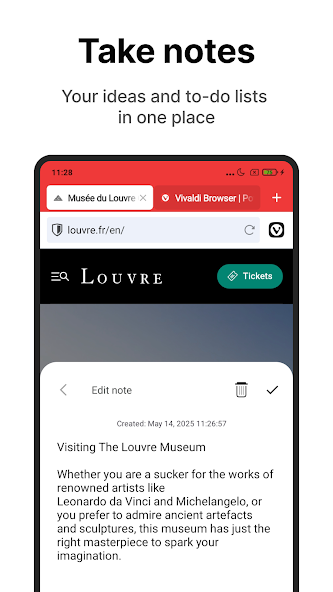
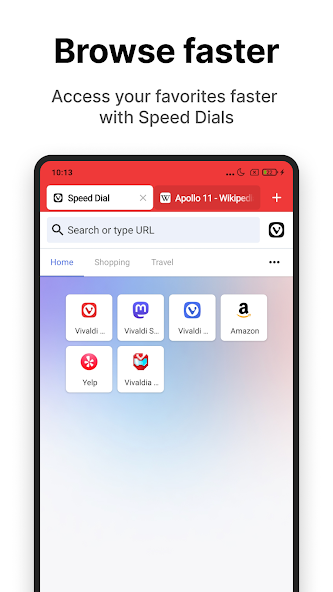
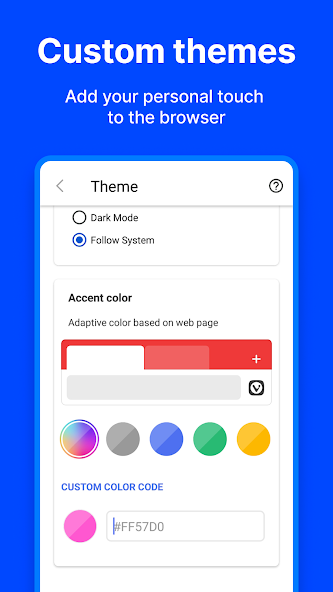
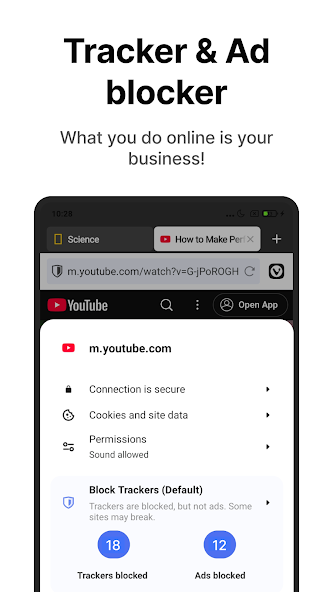
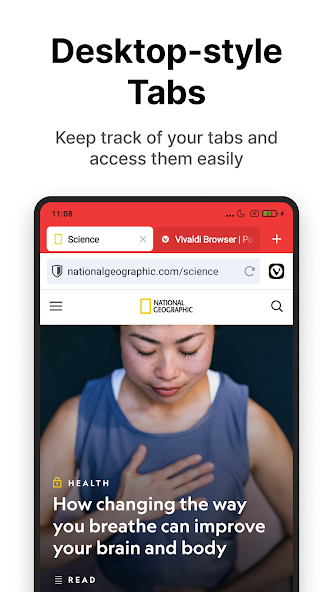

Vivaldi Browser APK is the Android installation package for Vivaldi, a Chromium-based web browser designed for users who want more privacy, customization, and control over their browsing experience. It includes useful tools such as a built-in ad and tracker blocker, private tabs, tab stacks, Speed Dial, translation, notes, and secure synchronization. The browser works on compatible Android phones and tablets and gives users more options than a basic mobile browsing app.
Vivaldi Browser Latest Version and New Updates
The Vivaldi Browser APK latest version includes improvements to browsing performance, stability, privacy, and the overall Android experience. New releases can also introduce changes to tab management, interface customization, downloads, and other browser tools. Always check the exact version and Android requirements before installing a Vivaldi Browser APK.

Latest Version and Release Details
The version number identifies a specific Vivaldi Browser release and helps users choose the correct APK. Different APK listings can show different builds or variants, so the version number, file size, architecture, and Android requirement should be checked together. This is especially important when manually installing an APK.
New Features and Improvements
Vivaldi Browser APK regularly improves its Android browser with new controls and usability changes. Recent releases have added improvements to tab management, PDF handling, app customization, and browsing tools. The available features can vary according to the version installed on your device.
Performance and Stability Updates
Browser updates can improve page loading, scrolling, tab handling, and general stability. They can also fix problems that cause the application to freeze or close unexpectedly. Actual performance still depends on your Android hardware, available RAM, storage, and internet connection.
Security and Bug Fixes
Updates can include fixes for browser problems and security-related issues. Using a supported version can also improve compatibility with modern websites and web technologies. Avoid unknown or modified APK packages because their contents may differ from the original application.
Changes in the Latest Android Release
Changes can affect the interface, tab system, privacy settings, and other browser functions. Some releases may introduce new tools while others mainly focus on stability and compatibility. Checking the release information before updating helps you understand what has changed.
Vivaldi Browser Features for Android
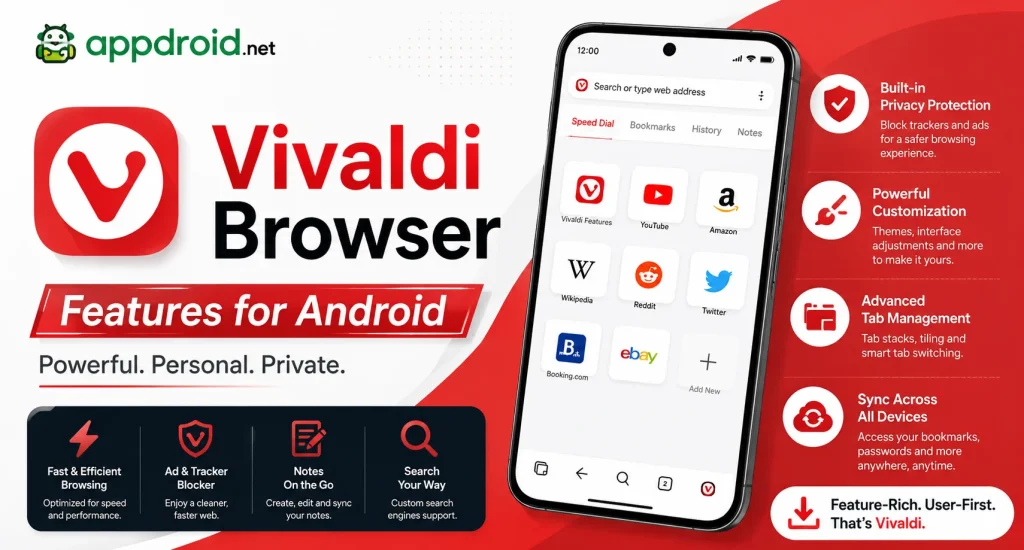
Vivaldi Browser APK for Android provides a large collection of features for browsing, privacy, customization, and productivity. Its strongest features include ad blocking, tracker protection, tab stacks, Speed Dial, private browsing, translation, notes, screenshots, and synchronization. These tools make it suitable for users who want more control over their mobile browser.
Built-In Ad and Tracker Blocker
Vivaldi includes an integrated blocker that can reduce advertisements and website trackers without requiring a separate extension. Users can adjust blocking behavior according to their browsing preferences. A cleaner webpage can also make articles and other content easier to read.
Desktop-Style Tab Management
The browser provides advanced tab controls that are closer to a desktop browsing experience. Users can open multiple tabs, organize related pages, switch between them, and close unnecessary tabs. This is particularly useful when researching several websites at the same time.
Two-Level Tab Stacks
Tab Stacks allow related tabs to be grouped together instead of keeping every page separate. The two-level design provides another way to view and organize tabs on compatible Android devices. It can be helpful when several pages belong to the same project or topic.
Customizable Speed Dial
Speed Dial places frequently visited websites on the browser’s start page for quick access. Users can create folders and organize shortcuts according to different categories. This reduces the need to type website addresses repeatedly.
Private Browsing Tabs
Private tabs provide a separate browsing environment for temporary sessions. They are useful when you do not want normal browsing activity stored in the usual history. Private browsing does not make your internet activity completely anonymous.
Dark Mode and Custom Themes
Vivaldi offers appearance controls that allow users to choose between light and dark designs. Custom themes can also change the overall look of the browser. These options make the interface more comfortable according to personal preferences and lighting conditions.
Built-In Web Page Translation
Vivaldi includes a translation tool that can help users understand webpages written in another language. You can translate supported pages without manually copying the complete text into another service. Available languages and translation behavior can depend on the browser version.
Notes and Reading List
The Notes feature allows users to save useful information while browsing. The Reading List can store webpages that you want to read later without immediately keeping them open as active tabs. These tools are useful for research, study, and everyday browsing.
Full-Page Screenshot Capture
Vivaldi can capture webpages beyond the part currently visible on the screen. Full-page screenshots can be useful when saving articles, instructions, receipts, or other long webpages. The resulting image can then be stored or shared using Android’s normal sharing options.
QR Code Scanner
The browser includes QR-related tools for opening links and accessing information quickly. A QR scanner can be useful when a website address is displayed on another phone, computer, poster, or printed document. It removes the need to manually type a long URL.
Vivaldi Browser Ad Blocker and Tracker Protection
The built-in Vivaldi Browser APK ad blocker helps reduce unwanted advertisements and tracking elements while browsing. Users can choose blocking levels and adjust the behavior for individual websites when necessary. This provides more control than relying only on the default settings of a basic mobile browser.
Block Ads Without Extra Extensions
Vivaldi can block supported advertisements directly through its browser settings. This means users do not necessarily need a separate ad-blocking extension for basic protection. Blocking some ads can also reduce distractions on content-heavy webpages.
Stop Website Tracking
Tracker blocking can restrict certain third-party tracking technologies used by websites. This can help reduce unwanted collection of browsing-related information. It does not provide complete anonymity because websites and online services can still use other methods to identify or monitor activity.
Manage Blocking Settings
Users can adjust the browser’s blocking settings according to their preferences. Different levels can be useful depending on whether you prioritize compatibility or stronger blocking. If a trusted website stops working correctly, reviewing the blocking settings can help.
Create Website Exceptions
Some websites may require advertisements, scripts, or other content to function correctly. Vivaldi allows users to adjust blocking behavior for individual sites when needed. This gives you more control instead of changing the blocking settings for every webpage.
Control Ads on Individual Websites
Website-specific settings can be useful when a page does not display correctly. You can change the blocking behavior for that website while keeping your preferred settings elsewhere. This creates a balance between privacy, clean browsing, and website compatibility.
Vivaldi Browser Privacy and Security Features
Privacy is one of the major reasons users choose Vivaldi Browser. The application provides private tabs, tracker blocking, ad blocking, secure synchronization, permission controls, and browsing-data management. These features can reduce common privacy concerns but should always be combined with safe online habits.
Private Browsing Tabs
Private tabs separate temporary browsing sessions from normal browser activity. They are useful on shared devices or when you want to browse without keeping normal local history. However, private mode does not hide your activity from your internet provider or websites you visit.
Privacy-Focused Search Options
Vivaldi supports different search engine choices, allowing users to select a search service that fits their preferences. A privacy-focused search engine can reduce some forms of personalized tracking. Search privacy still depends on the policies and technology of the selected provider.
Cookie and Tracker Protection
Cookies can store information about website sessions and preferences, while trackers can collect browsing-related information. Vivaldi provides settings that help users control these technologies. Adjusting these options can improve privacy while still allowing important website functions to work.
Clear Browsing Data Automatically
Browser data can include history, cookies, cached files, and other stored information. Vivaldi provides options for clearing selected browsing data when required. Regularly reviewing stored data can be useful on shared or low-storage devices.
Secure Data Synchronization
Vivaldi Browser APK Sync allows supported information to move between compatible devices through an encrypted connection. Users can synchronize useful browser data without manually transferring everything from one device to another. A strong account password is still important for protecting synchronized information.
WebRTC Leak Protection
WebRTC can expose certain network information in some browsing situations. Vivaldi provides privacy controls related to WebRTC that can help users manage this behavior. These settings are particularly relevant for users who pay close attention to browser privacy.
Website Permission Controls
Websites can request access to features such as location, camera, microphone, and notifications. Review each request before giving permission. Only allow access when it is necessary and when you trust the website.
Vivaldi Browser Tab Management and Tab Stacks
Tab management is one of the most useful parts of Vivaldi Browser for Android. The browser provides several ways to organize open webpages, including tab stacks, tab switching, and recently closed tabs. These options can make research and multitasking much easier.
Desktop-Style Tab Bar
The tab interface provides quick access to multiple open webpages. Users can switch between pages without repeatedly opening new browser windows. This can be especially useful on tablets and large-screen phones.
Two-Level Tab Stacks
Two-level tab stacks group related pages under one main tab. Opening the group provides access to the individual pages inside it. This arrangement can keep the tab area organized when many related webpages are open.
Accordion Tab Stacks
Accordion-style stacks provide another method of managing grouped tabs. Users can expand or collapse a group when they need to access its pages. This helps reduce visual clutter when many tabs are open.
Tab Switcher
The tab switcher provides an overview of active webpages. You can select a page, close tabs, or move between different groups. It is useful when several websites are open at once.
Search Open Tabs
Searching open tabs becomes useful when there are many active pages. Instead of manually checking every tab, you can locate the required page through the available tab controls. This can save time during research-heavy browsing sessions.
Reorder and Duplicate Tabs
Tabs can be organized according to your preferred workflow. Duplicating a page is useful when you want to keep the original page open while exploring another version of the same website.
Restore Recently Closed Tabs
Accidentally closing an important webpage does not always mean you need to search for it again. Recently closed tab controls can help restore pages from a previous session. Availability can depend on the browser version and current settings.
Sync Open Tabs
Vivaldi Sync can make open tabs available across supported devices. This is useful when moving from an Android phone to another compatible device. You can continue browsing without manually searching for every page again.
Vivaldi Browser Customization Options on Android
Customization is another major strength of Vivaldi Browser. Users can change the theme, start page, Speed Dial, toolbar, address bar, and other interface settings. These controls allow the browser to match different browsing habits.
Customize Browser Themes
Users can choose different visual themes to change the browser’s appearance. A suitable theme can make menus and browser controls easier to recognize. Theme options may vary between releases.
Change Light and Dark Mode
Dark mode provides a darker interface that can be more comfortable at night. Light mode can be preferable in bright environments. You can switch between them according to your surroundings.
Personalize the Start Page
The start page can be organized around your most frequently used websites and tools. Removing unnecessary elements can create a cleaner interface. This makes it easier to reach important pages immediately after opening the browser.
Customize Speed Dial Layout
Speed Dial shortcuts can be organized into folders and categories. For example, work, news, shopping, and study websites can each have their own group. This keeps frequently used pages easy to find.
Change Toolbar and Button Settings
Vivaldi Browser APK provides options for adjusting parts of the browser toolbar. Moving frequently used controls closer to your normal touch position can improve navigation. The available controls depend on the installed version.
Adjust Address Bar Options
Address bar settings can affect where and how browsing controls appear. These options are useful for users who prefer a particular layout on smaller or larger Android screens.
Customize the App Icon
Some newer Vivaldi releases provide additional app-icon customization. This lets users change the appearance of the browser icon on compatible devices. The available choices depend on the version installed.
Vivaldi Speed Dial and Personalized Start Page
The Vivaldi Speed Dial system gives users a convenient starting point for regular browsing. Instead of searching for common websites every time, you can place shortcuts directly on the start page. Folders and categories can keep the page organized.
Add Favorite Websites
Add websites that you visit regularly to Speed Dial. Common examples include email, news, work, education, and entertainment websites. This creates faster access from the browser homepage.
Organize Speed Dial Folders
Folders help separate different types of websites. You can create groups for work, shopping, research, social platforms, or other categories. This is particularly useful when you have many saved shortcuts.
Customize Start Page Layout
The start page can be adjusted to match your browsing habits. Remove unnecessary elements and keep your most important shortcuts visible. A cleaner layout can also make the browser feel faster and easier to navigate.
Change Homepage Settings
Vivaldi gives users control over how the browser starts. You can use the standard Speed Dial experience or adjust available homepage settings according to your needs.
Use Search Engine Shortcuts
Search engine shortcuts can make it easier to search with a specific service. This can save time when you regularly switch between different search engines.
Vivaldi Browser Sync Across Android and Other Devices
Vivaldi Sync allows supported browsing information to remain available across compatible devices. This is useful for users who browse on a phone, tablet, or computer and want their important information in one place. Sync settings can be adjusted according to the information you want to share.
Sync Bookmarks and Speed Dials
Bookmarks and Speed Dial entries can be synchronized across supported devices. This means you do not have to manually recreate your favorite websites after switching devices.
Sync Passwords and Settings
Supported passwords and Vivaldi Browser APK settings can be synchronized through the Vivaldi account. Always protect your account with strong credentials because synchronized information can be sensitive.
Sync Browsing History
History synchronization can make recently visited webpages available across supported devices. This can be useful when you start research on one device and continue it on another.
Sync Open Tabs
Open tabs can be synchronized so that webpages currently being used on one device can be accessed from another. This makes moving between devices more convenient.
Sync Notes and Reading List
Notes and Reading List entries can also be synchronized where supported. This is helpful for saving research material and continuing reading later.
Send Tabs to Other Devices
Sending a tab to another device can provide a quick way to continue browsing elsewhere. Instead of copying the URL manually, you can use the browser’s synchronization tools.
Encrypted Synchronization
Vivaldi uses encryption to protect synchronized information during transfer. Users should still keep account credentials private and use a secure password.
Vivaldi Translate and Language Support
Vivaldi includes a built-in translation system for users who regularly visit websites in different languages. The tool can make international content easier to understand without requiring a separate translation application. It is especially useful for research and reading foreign-language websites.
Translate Complete Web Pages
You can translate a supported webpage into a preferred language. The feature works directly through the browser interface, making the process simple for everyday browsing.
Translate Selected Text
When you need to understand only a small part of a webpage, selected text can be translated instead of the entire page. This can be useful for individual words, sentences, or technical terms.
Private Translation Technology
Vivaldi emphasizes privacy in its built-in translation approach. The translation service is designed to avoid depending on advertising-based profiling for this browser feature.
Change Translation Language
Users can select the language they want to use for translated content. Available languages can depend on the translation system and current browser version.
Multilingual Website Support
Translation can make international news, documentation, articles, and services easier to access. The quality can vary depending on the language and complexity of the original text.
Vivaldi Browser QR Scanner and Page Capture Tools
Vivaldi includes several tools that make common browsing tasks easier. QR scanning and screenshot capture can save time when moving information between physical and digital sources.
Scan QR Codes
Use the browser’s QR scanner to open links encoded in QR codes. This can be useful when a URL appears on a computer screen, poster, package, or printed document.
Create QR Codes for Web Pages
A webpage can be shared through a QR code when the relevant browser function is available. Another device can then scan the code to open the same page.
Capture Full-Page Screenshots
Full-page screenshots can capture content that extends below the visible screen. This is useful for saving long webpages as a single image.
Capture Selected Page Areas
Some screenshot tools allow you to capture only the portion you need. This is useful when you want to save a specific section instead of an entire webpage.
Save and Share Screenshots
Captured images can be stored on the Android device and shared through compatible applications. This makes it easy to send webpage information to friends, coworkers, or other devices.
Vivaldi Browser Android Requirements and Device Compatibility
Before installing Vivaldi Browser APK check your Android version and device architecture. Different releases can have different compatibility requirements, and APK variants may be created for different processor architectures. Selecting the correct package reduces the chance of installation errors.
| Requirement | Details |
|---|---|
| Platform | Android |
| Category | Web Browser |
| Developer | Vivaldi Technologies |
| Browser Engine | Chromium |
| File Type | APK |
| Package Name | com.vivaldi.browser |
| Device Types | Android phones and tablets |
| Architecture | ARM 32-bit, ARM 64-bit, Intel 64-bit |
| Android Requirement | Depends on the selected release |
Minimum Android Version
The minimum Android version can change between releases. Always check the requirement for the exact Vivaldi APK you want to install rather than assuming that every release supports the same Android version.
Processor Architecture
Android devices use different processor architectures. A package designed for one architecture may not work correctly on another device, so selecting the correct variant is important.
ARM 32-Bit Support
Some APK releases are provided for ARM 32-bit devices. These packages are intended for compatible older or lower-end hardware.
ARM 64-Bit Support
ARM64 is common on modern Android smartphones and tablets. Choosing the ARM64 package can provide compatibility with supported 64-bit devices.
Intel 64-Bit Support
Some releases may also provide an x86_64 variant for compatible Android hardware. Most modern Android phones use ARM rather than Intel architecture.
Smartphone Compatibility
Vivaldi can work on compatible Android smartphones across different manufacturers. Actual performance depends on processor strength, RAM, storage, Android version, and the websites you visit.
Tablet Compatibility
The larger screen of an Android tablet can be particularly useful for Vivaldi’s advanced tab management. Tablet users can also benefit from having more visible content while working with multiple webpages.
Vivaldi Browser APK Technical Details and File Information
Technical information helps users identify the correct Vivaldi Browser APK before installation. Checking these details can prevent confusion between different releases and processor variants.
| App Information | Details |
|---|---|
| App Name | Vivaldi Browser |
| Developer | Vivaldi Technologies |
| Category | Web Browser |
| Package Name | com.vivaldi.browser |
| Platform | Android |
| Browser Engine | Chromium |
| File Format | APK |
| Architecture | ARM 32-bit / ARM 64-bit / Intel 64-bit |
Vivaldi Browser Version
The version number identifies the particular browser release. Check this number whenever you update, downgrade, or compare different APK files.
APK File Size
APK size can change between releases because browser components and features are updated. Make sure your device has enough free storage before downloading and installing the package.
Package Name
The Android package identifier is used to identify the application internally. The Vivaldi Browser package is commonly listed as com.vivaldi.browser.
Developer Information
Vivaldi Browser is developed by Vivaldi Technologies. Checking the developer information is another useful step when verifying an APK.
APK Architecture
Different processor architectures can require different APK variants. Select the package that matches your Android device instead of installing a random variant.
Android Compatibility
Compatibility depends on both the Android version and processor architecture. Always compare these details with your device before starting the installation.
How to Download and Install Vivaldi Browser APK on Android
Installing an APK manually is different from installing an application through a standard app store. Before opening an APK, verify its source, version, architecture, Android requirement, and file details. This reduces the risk of installing an incompatible or unsafe package.
Check Your Android Version
Open your Android settings and find the software information section. Check the installed Android version and compare it with the requirements of the selected Vivaldi Browser APK release.
Select the Correct APK Variant
If multiple APK variants are available, identify your device’s processor architecture first. Select the appropriate ARM 32-bit, ARM64, or x86_64 package when applicable.
Check the APK File Details
Review the application name, version, file size, package information, and developer details. Do not install a package if important information appears suspicious or inconsistent.
Allow APK Installation
Android may require permission before installing an APK from an external source. Only grant this permission to a source you trust and disable it again when it is no longer needed.
Install Vivaldi Browser
Open the APK file and follow the Android installation prompts. If installation fails, check storage, Android compatibility, architecture, and whether another version of the application is already installed.
Open and Configure Vivaldi
After installation, launch the browser and review the initial settings. Choose your preferred search engine, theme, privacy controls, Speed Dial, and synchronization options.
How to Customize Vivaldi Browser Settings on Android
Vivaldi gives users extensive control over the browser interface. You can adjust the theme, homepage, Speed Dial, tab settings, toolbar, and address bar to match your preferred browsing style.
Change Browser Theme
Open the appearance settings and select a suitable theme. A customized theme can make browser controls easier to recognize and more comfortable to use.
Enable Dark Mode
Dark mode changes supported browser elements to a darker appearance. It can be particularly comfortable during nighttime browsing or in low-light environments.
Customize the Start Page
Choose which shortcuts and browser elements appear when the application opens. Keeping only useful items can make the start page cleaner.
Edit Speed Dial
Add, remove, and organize frequently visited websites. Use folders when you have many shortcuts to keep different categories separated.
Change Tab Settings
Vivaldi provides different options for displaying and organizing tabs. Choose the layout that works best for the size of your screen and your browsing habits.
Adjust Address Bar Options
Address bar settings can change how browsing controls appear. Adjusting them can make navigation easier, particularly on large-screen smartphones.
How to Use Vivaldi Browser for Private and Secure Browsing
Vivaldi includes several privacy controls that can reduce unwanted tracking and intrusive content. These features are useful for everyday browsing, but users should still follow safe online practices.
Open a Private Tab
Open a private tab when you want a separate temporary browsing session. Remember that private browsing does not make your activity invisible to internet providers or websites.
Enable Tracker Blocking
Turn on tracker protection to reduce common third-party tracking technologies. You can adjust the level if a trusted website stops working correctly.
Block Online Ads
Enable Vivaldi’s built-in ad blocker to reduce supported advertisements. Website-specific controls can be used when a page needs different blocking behavior.
Manage Website Permissions
Review permissions for location, camera, microphone, notifications, and other device functions. Only approve requests that are necessary and come from websites you trust.
Clear Browsing Data
Use browser settings to remove selected history, cookies, cache, and other stored information. Clearing data can also help when a website behaves incorrectly because of outdated cached content.
Use Privacy-Focused Settings
Review the browser’s privacy options and choose settings that match your needs. Stronger privacy settings can sometimes affect website compatibility, so adjust them carefully.
Pros and Cons
Vivaldi Browser APK offers a broad feature set, but no browser is perfect for every Android user. Its advantages are strongest for people who value privacy, customization, advanced tabs, and built-in productivity tools.

Pros
Cons
Main Advantages
Main Disadvantages
Is Vivaldi Browser Safe and Private to Use on Android?
Vivaldi Browser APK provides several privacy and security features for everyday browsing. These include tracker blocking, ad blocking, private tabs, encrypted synchronization, and permission controls. However, the safety of an APK also depends on where the file comes from and whether it has been modified.
Vivaldi Browser vs Other Android Browsers
Vivaldi is especially attractive to users who want a browser with advanced controls rather than a minimal browsing experience. Its combination of ad blocking, tab stacks, customization, notes, translation, and synchronization gives it a distinctive feature set.

| Feature | Vivaldi Browser | Typical Android Browser |
|---|---|---|
| Ad Blocking | Built-In | Varies |
| Tracker Blocking | Built-In | Varies |
| Private Tabs | Yes | Usually |
| Tab Stacking | Yes | Limited |
| Speed Dial | Yes | Varies |
| Notes | Yes | Rare |
| Page Capture | Yes | Varies |
| QR Scanner | Yes | Varies |
| Translation | Built-In | Varies |
| Cross-Device Sync | Yes | Varies |
| Interface Customization | Extensive | Usually Limited |
Vivaldi for Privacy
Vivaldi Browser APK is a strong option for users who want built-in privacy controls without relying on many additional tools. Tracker blocking, ad blocking, private tabs, and permission controls provide several useful options.
Vivaldi for Tab Management
Users who regularly keep many pages open can benefit from tab stacks and other organization features. These controls are particularly useful for research, study, and multitasking.
Vivaldi for Customization
Vivaldi provides more interface controls than many basic Android browsers. Users can personalize themes, Speed Dial, toolbar settings, and other browser elements.
Vivaldi for Productivity
Notes, Reading List, screenshots, translation, downloads, and synchronization make Vivaldi useful beyond simple web searches. These tools can help organize information without constantly switching between separate applications.
Frequently Asked Questions About Vivaldi Browser APK
Final Verdict on Vivaldi Browser for Android
Vivaldi Browser APK for Android is a feature-rich option for users who want more control over mobile browsing. Its strongest advantages include built-in ad and tracker blocking, advanced tab management, Speed Dial, customization, private browsing, translation, Notes, Reading List, screenshots, and cross-device synchronization.
The browser is especially useful for people who keep many tabs open, care about privacy, or want to customize the interface. Its advanced controls may take a little time to learn, and the correct APK variant must be selected when installing the application manually.
Overall, Vivaldi Browser provides a strong combination of privacy, customization, productivity, and browsing flexibility on compatible Android devices. Before installing a Vivaldi Browser APK, check the version, Android requirement, processor architecture, file details, and source to avoid unnecessary compatibility or security problems. APPDROID.NET can be used to organize these important details and help readers understand the browser before installation.